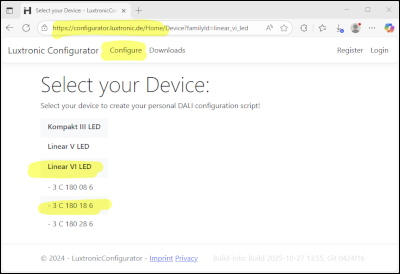
Make sure you are on configurator.luxtronic.de.
Go to "Configure" .
Then, choose the product-family of your Gear.
A submenu will open showing all the Gears of that family. Choose your exact model.
Help
What is this?
This the homepage of the Luxtronic Configurator and the Luxtronic Production Programmer.
The Luxtronic Configurator is a tool that you can use here, online, to create configurations for DALI-compatible Gears produced by Hadler GmbH.
The Luxtronic Production Programmer is a tool that you can download and use in your production-environment to apply the configurations to the Gears using DALI.
What do I need?
You will need a DALI USB interface-device. The DALI USB interface-device is used to connect your computer to your DALI gear.
So far we used "DALI USB" and "DALI-2 USB" made by the companies Lunatone and Tridonic:
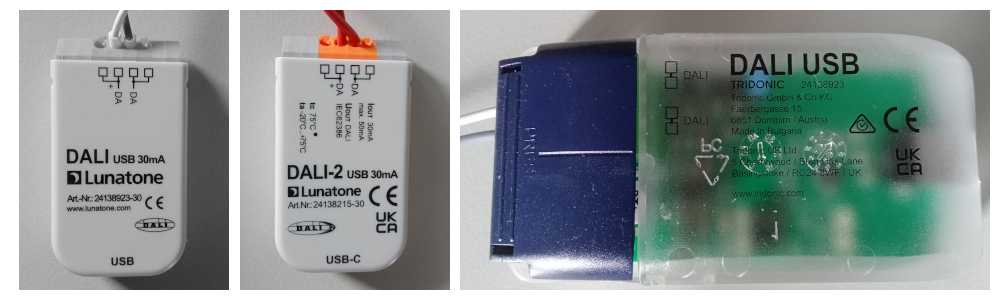
Check the data-sheet of your device to find out whether you should use DALI or DALI-2.
Do I need to register/login?
No. Usually, you will not need to register or login. You can develop configurations for the Hadler Dali-Gears listed on this page in the configurator. And you can download (and use) the Luxtronic Production Programmer.
You may want to register/login if:
- You want to configure Gears that are not public - for example Gears that have been developed exclusively for your company only.
- You need access to certain developer-options. Those options can easily break your Gears, so they are not available as a standard.
Part 1: Developing Your Configuration
1.1: Select your Gear
1.2: Name your configuration
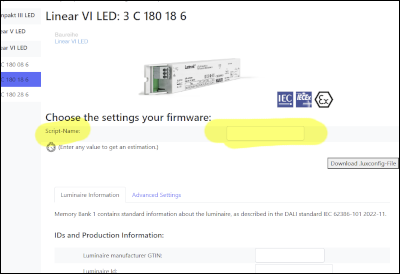
Your Configuration should have a name, so you can clearly identify it once it is done.
Write that name into the field that says "Script-Name".
Note: The term "Script" and "Configuration" are both used interchangably. In our context they mean the same thing.
The name will also be used as a file-name, so you may want to avoid using special characters in your name.
1.3: Specify your settings
Enter any setting you want the configuration to set.
What settings are available?
The settings that are available depend on the Gear you chose. We might implement additional settings in the future. If you are looking for a specific setting that is missing, please let us know.
How many settings should I set?
You can set one, many, or all of the settings.
The more settings you do set, the longer it will take for the configuration to be applied to a Gear. That can make a difference in a production-environment.
Settings without a value will not be changed on the Gear.
1.4: Download your configuration-file
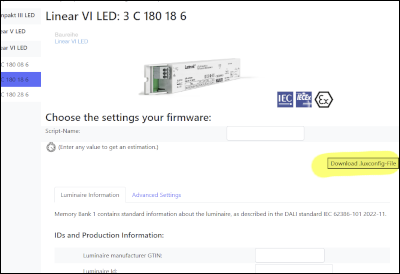
Use the button "Download .luxconfig-File" to download your configuration.
Note that there is no other way to "save" the settings you selected.
Part 2: Applying Your Configuration
2.1: Requirements
- The Luxtronic Production Programmer does not require an internet-connection to run.
- However, it might not be compatiple with computers that run Windows 7 or older.
- You will need a DALI-Interface-Device (see above).
2.2: Download the Production Programmer
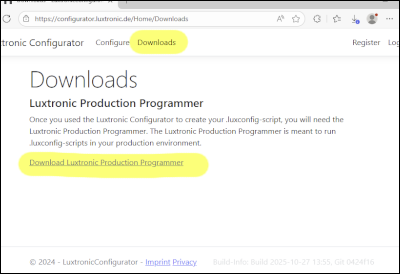
Go to "Downloads". Download and install the Luxtronic Production Programmer.
Notes:
- Your computer might might warn you that you are downloading/installing an unknown file. In some cases you might need to click "further information" to circumvent the warning.
- Your company's Firewall may block the download or installation of unknown files completely. In that case, consult your IT-department.
2.3: Initial Setup
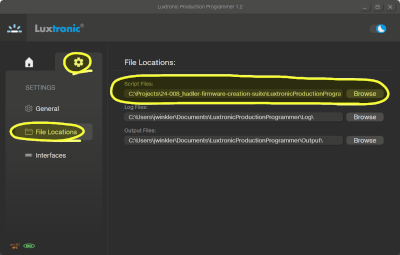
Run the Luxtronic Production Programmer.
Click on the round Gear next to the home-symbol. Then choose "File Locations". Note the path given for "Script Files". Make sure all of your configurations-files are in that folder. Alternatively change the path so that it points to where your files are.
You can ignore "Log Files" and "Output Files" for now.
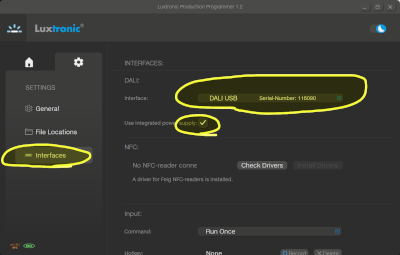
Now click "Interfaces". Connect your DALI-Interface-Device to your computer. Then choose that interface-device in the dropdown.
Find out if your DALI-Interface-Device uses an integrated power supply to provide power to the DALI-Bus. Set the checkbox "Use integrated power supply" accordingly. Your scripts/configuration-files will not work if this is set incorrectly.
You can ignore the settings for "NFC" and "Input" for now.
2.4: Choose your Configuration
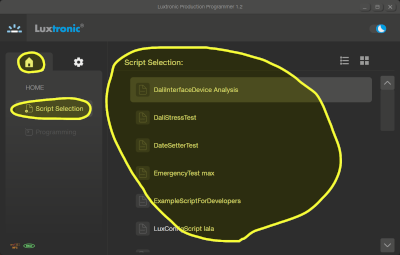
Click on the "Home"-icon.
You should now see a list of all configuration-files that are in your chosen script-folder.
Select one of your scripts/configurations. If your setup is complete and correct, you will be able to click "Programming".
If "Programming" is disabled, you can use it's tooltip to find out what you need to change.
2.5: Run your Configuration
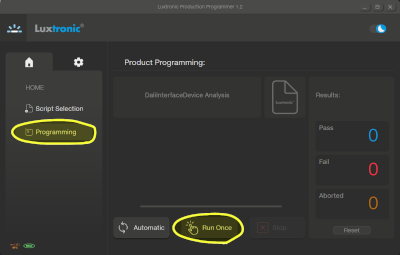
Click "Programming".
Make sure exactly one DALI-Gear is connected with your DALI-Interface-Device.
Click "Run Once"
Follow the instructions on the screen.
2.6: Check your Results
Please test and check the results of your configuration before you use it in production.
2.7: Accellerate your production
If you want to use your configuration for a big number of gears, you can do several things to speed up the process:
- You can use the "Automatic"-button to repeat a configuration over and over.
- In "Settings"=>"Interfaces"=>"Input" you can define hotkeys or custom-buttons.